
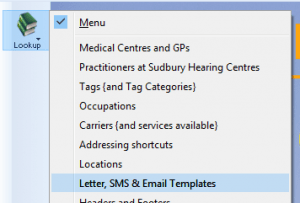
To create a Contact Template, from the Lookup menu select Letter, SMS & Email Templates
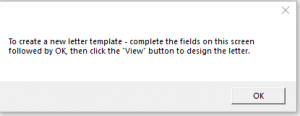
Click New, read the message displayed and then click OK:
Enter a Reference and Description:

Click on the arrow beside Letter Head and, if require, select the letter head that is appropriate for this communication

Enter any comments:

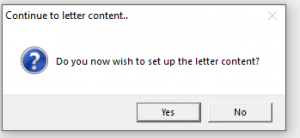
Click OK. A message will be displayed. Click YES to set up the communication content:
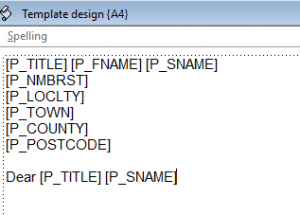
On the right hand side of the contact template is a list of all the merge fields that you can use on this communication. So, for example, if you were doing a letter you might want to drag across the following (with spaces and carriage returns where appropriate)
If you were sending an email about a future appointment you might want to drag across the following (with spaces and carriage returns where appropriate):
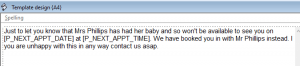
If you wanted to send an SMS:
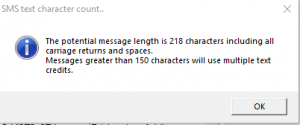
Note the button to Check for SMS Text Length:

Be mindful, anything over 150 characters may go into 2 or more text credits.
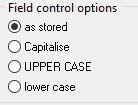
Note that some fields are stored capitalised by default (such as Town on the patient registration card). You can change the case using the Field control options:
When you have completed your selection click OK.