
We often get calls asking for help when setting up new practitioners.
So here is how you do it.
Setting Up: Name
- From the Look up button, select Practitioners at ….
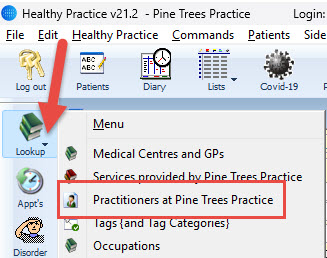
- From the top menu bar click on the New button. (Note the next in sequence number will automatically be entered.)
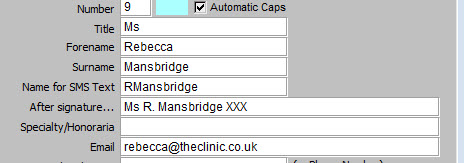
- Enter the details for the practitioner: Title, Forename, Surname, Name for SMS Text, After signature….
Note: Surname is the name that will appear in the diary list
Note: the name for SMS Text enables 15 characters only, keep the short, or abbreviated, to reduce the cost of SMS messages.
Setting Up: Time Slots
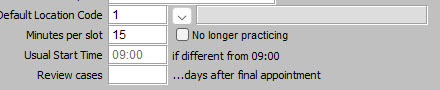
- Enter the time slot required in the Minutes per slot field.
- If they wish to use the review cases feature, enter the number of days after the final appointment this practitioner wants to see a patient.
Note: If the practitioner wanted to have a 30 minute treatment time and 45 minute consultation time you would need to enter a 15 minute time slot as 2 x 15 would enable a 30 minute appointment and 3 x 45 would enable a 45 minute appointment.
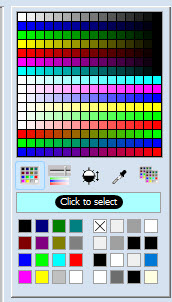
- If you plan to use room allocation, then from the colour palette, click on a colour you wish to apply to the Practitioner and click on ‘Click to select’ to apply the colour.
Enter other data as required and then click OK. Once you have done this the new practitioner will appear in the diary BUT it is important to click on the Appt Types button if you want the correct duration to be linked to the correct appointment type – see instructions below:

Setting Up: Appointment Types
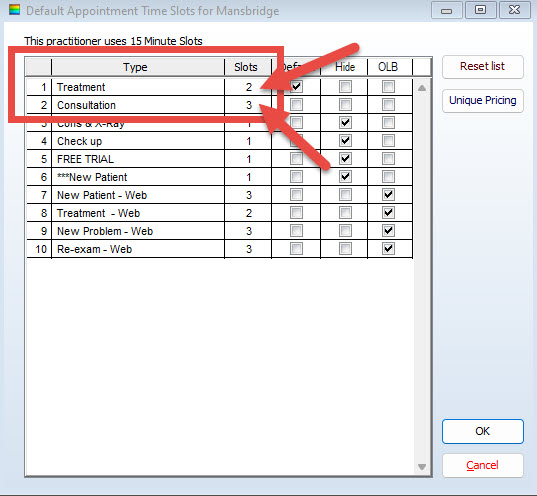
Here you can specify each Practitioner’s default duration for each type of appointment. So, for example, let’s assume the practitioner has 15 minute slots and has a 30 minute treatment time and 45 minute consultation time. If this is the case, you would enter 2 for treatments and 3 for consultations – as shown below:
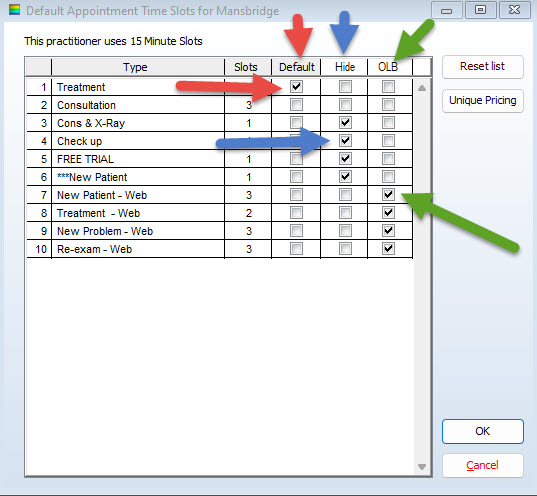
Default: Click in the box beside the appointment type that you wish to appear as the default for this practitioner when recording a new appointment – in the Default column.
Hide: Click in the box beside any appointments you wish hidden when recording a new appointment for this practitioner (for example you might offer massage or acupuncture treatments as a clinic but this practitioner may not provide these treatments) – in the Hide column.
OLB: IF you are using Online Booking, click in the box beside the online booking appointment types that are available for this practitioner – in the OLB column.
Then click OK when you have finished
Setting Up: Practitioners Income Share
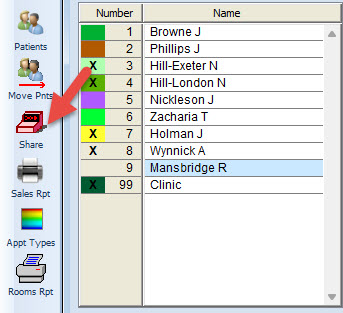
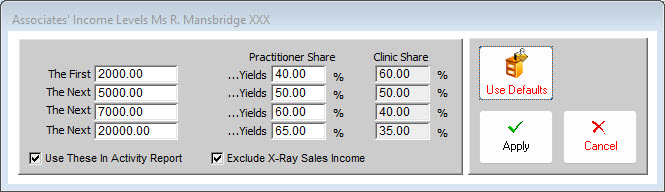
Click on Share if you pay the associate based upon a percentage share of income. Note that if you want the percentage split to appear on your Cash Allocation reports ensure you tick the Use These in Activity Reports checkbox.
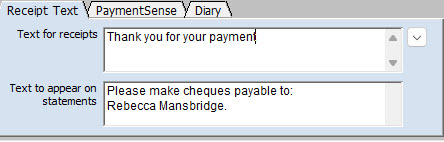
Setting Up: Receipt Text
Enter any text you wish to automatically appear on receipts and/or statements.
Click OK to Save.