
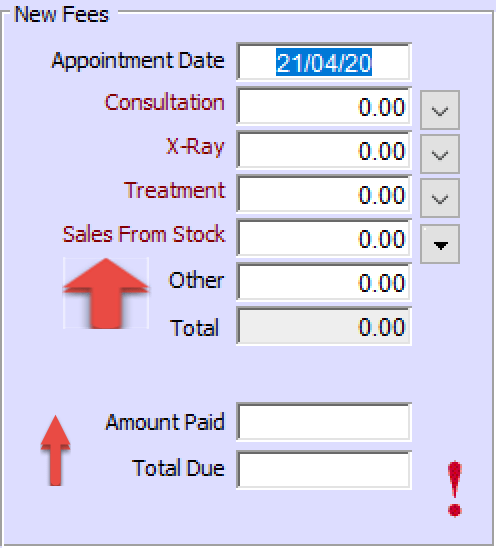
Stock tip: Selling Stock to a Patient
Either directly from the diary, or a patient card, click on the New Fee button. Then a stock tip is to click on the Sales From Stock Hot Spot. Then the following window will appear showing the list of stock items on the right hand side. Next, simply click and drag the stock item/s you wish to purchase over to the left hand screen (or double click on the stock item). Once you have selected all your stock items, click Done. You can then continue to complete the sale by entering the amount paid.
Notes about this stock tip:
If the sale of your stock item is to go to the clinic and not the managing practitioner. In this case we recommend you set up a Practitioner as Stock Sales, and mark this as No-longer Practicing (see Entering a Practitioner).
Stock Tip: Recording Stock Sales from Passers By
Often people walk in from the street and ask to buy a stock item, such as an ice pack or support cushion. These people may not be patients that have visited for treatment, so how do you enter them into Healthy Practice? Here’s a step by step guide on Recording Stock Sales from Passers By. First you will need to set up a ‘dummy’ practitioner to allocate Sales from Stock to, (for example called Stock Sales.
- From Lookup, Select Practitioners at … clinic. The Practitioners window is displayed
- Click the New button
- Type a unique number for the practitioner and press the Tab key. DO NOT use ‘0’ for the practitioner number, use a number such as ‘99’
- In the Surname field type Stock Sales and press the Tab key
- Type the time (in minutes) which corresponds to their minimum appointment time ‘unit’, e.g. 15 minutes. (This is not really needed but you need to enter a time in this field as it is a mandatory field)
- Mark the practitioner as No longer practising, so that they are not displayed in the diary
- Click the check box Show this name in fees and cash allocation drop lists
Secondly you will need to setup a ‘Dummy Patient’
- Go to any patient card and click on New
- In the Surname field enter for example ‘Stock Sales’ or ‘Clinic Sales’
- Ensure you enter the Practitioner number for your Dummy Sales Practitioner eg. 99:
- Click OK to save
You can then enter a Stock item for someone that has purchased ‘off the street’ by going to Patient Card – Clinic Sales and enter in the normal way. All stock will then be taken from stock correctly and applied to this Stock Sales patient / Stock Sales Practitioner.
Deleting a Stock Sale
Sometimes people return a stock item or one is recorded by mistake. Deleting Sales from Stock items is really quick and easy. First, remember that if it is paid, you need to think about the payment first – has the money been paid to a practitioner already?
- Display the Cashbook
- Click on the Payment and click Delete
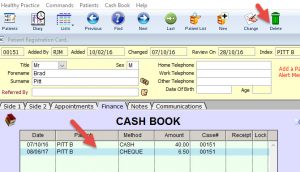
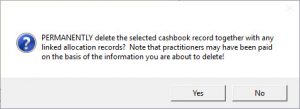
- Click Yes on the message displayed (note that you may need to make an adjustment to practitioners if they have already received a payment for this stock item)
- Display the Finance tab
- Double click on the line that has the sales from stock

- Click on the Sales from stock text

- Click on the Rubbish Bin icon to delete the stock sale and put it back into your stock count

- Select Yes on the confirmation message displayed and then click OK to book the sales back into stock