
Everyone tells us that entering fees and payments in Healthy Practice is easy. Many do, however, find correcting errors more challenging. Mostly because it doesn’t need to be done very often. It’s not so easy to learn and remember something you do only once a month, if that. So here are some tips to help you when deleting Fees and Payments.
Understanding How Fees and Payments Are Stored in the Database
To make things quick and easy for you, we have given you one screen where you can enter both your fee and your payment – either Kwik-Pay or New Fees. However Healthy Practice does not store the information in one file and this is often a cause of confusion. It stores the fee information in one file and the payment information in another.
- When you click on Finance you are seeing the Fees file.
- When you click on Cashbook you are seeing the Cash file.
Ok, I know, I know. Why do you need to know this? Well if you click on a Payment within the Cashbook and delete it, no Fees will be deleted, and vice versa. In fact if you click on a fee that has been paid, lots of warning messages are displayed telling you that a payment is linked to the fee.
Deleting Fees and Payment the Easy Way
When I train, I find that most people think of the fee and payment windows in this order.

If you are deleting fees and payments you need to think of these in the REVERSE order. Once you do that it all becomes easy.

So, if you have a fee and payment that has been entered by mistake, start with the Cash Book NOT the fees. As well as making your life easier (as you will see) this is best for the clinic too. As most practitioners are paid based upon cash, not fees. So, BEFORE you delete anything, think has the practitioner been paid yet? If so, do you need to reclaim the money from them? Once that is decided, if you still want to delete the fee and payment, then click on the Cash Book entry and click Delete. The following message will be displayed:
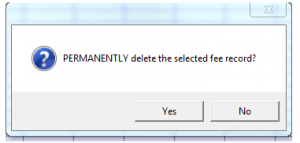
Click Yes and the Cashbook entry will be deleted BUT NO FEES WILL HAVE BEEN DELETED. If you want to delete the fee as well, you need to display the Finance window, click on the fee and click Delete.
Why Can’t I just Delete a Fee and the Payment be Deleted Automatically?
There are lots of reasons but one of the most important ones is that many clinics encourage patients to pay in advance. Or claim back for a block of treatments in advance. In my experience, many people think… “Patient had a treatment of £20 and paid £20, and I enter them in one window, so I should be able to delete the fee and it will automatically delete the payment.” That is fine when the patient pays as they go, but what happens if a patient has a treatment of £20 and pays £100 for 5 treatments? If you made a mistake with entering just one of those treatments and wanted to delete the fee, would you want to delete the whole £100 too? Or just the one fee? What about if the clinic is claiming back from an insurance company? Then you want to enter lots of fees and put one payment against those fees. In both of these cases it makes more sense to store the fees and payments separately and then link them.
Deleting fees when they are linked to a Payment
In this case you need to break the link first – or in Healthy Practice speak, unallocate the payment. Click Account. Next, click All Fees and the Fees and Payments that have been linked to them will be shown similar to that shown below:
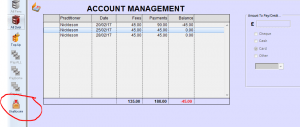
Click on the fee where you want to break the link and click Unallocate:
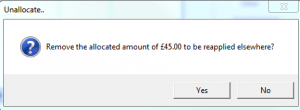
A message will be displayed. Click Yes and you will now be able to delete the fee you selected.